Cameras & devices
0:40 walkthrough
How to connect a GoPro to RiderShield
Connect your GoPro during ride setup and try the recording controls from your ride screen.
Follow along, step by step
Have your GoPro ready to connect
Power on your camera and open its Connect Device screen. The demonstration begins with this screen already open; it does not show how to navigate the camera's settings to reach it.
Start a ride and complete calibration
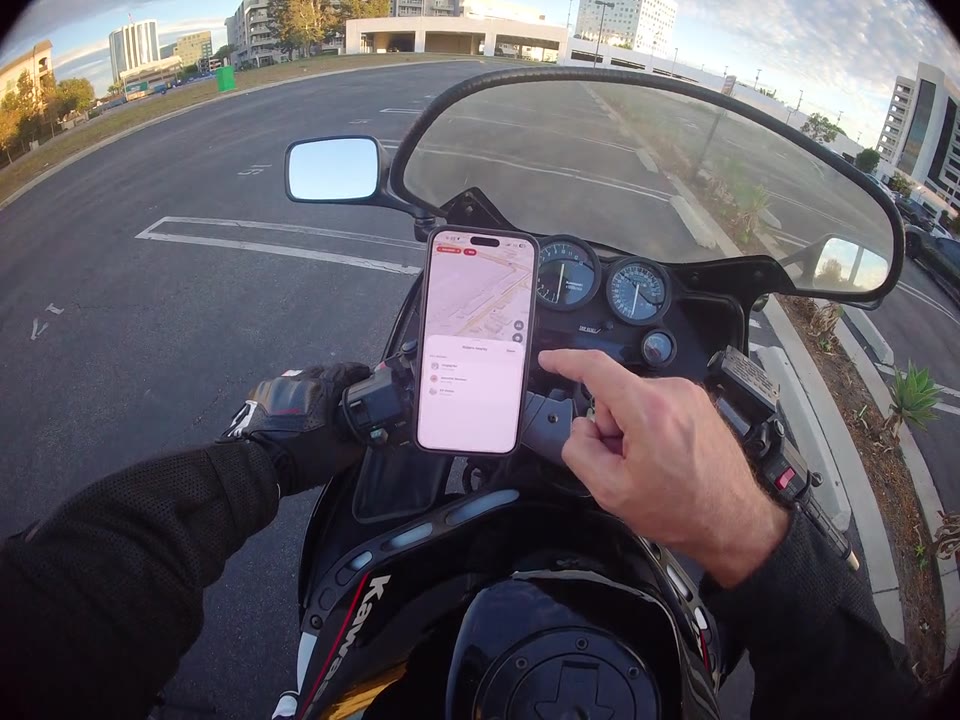
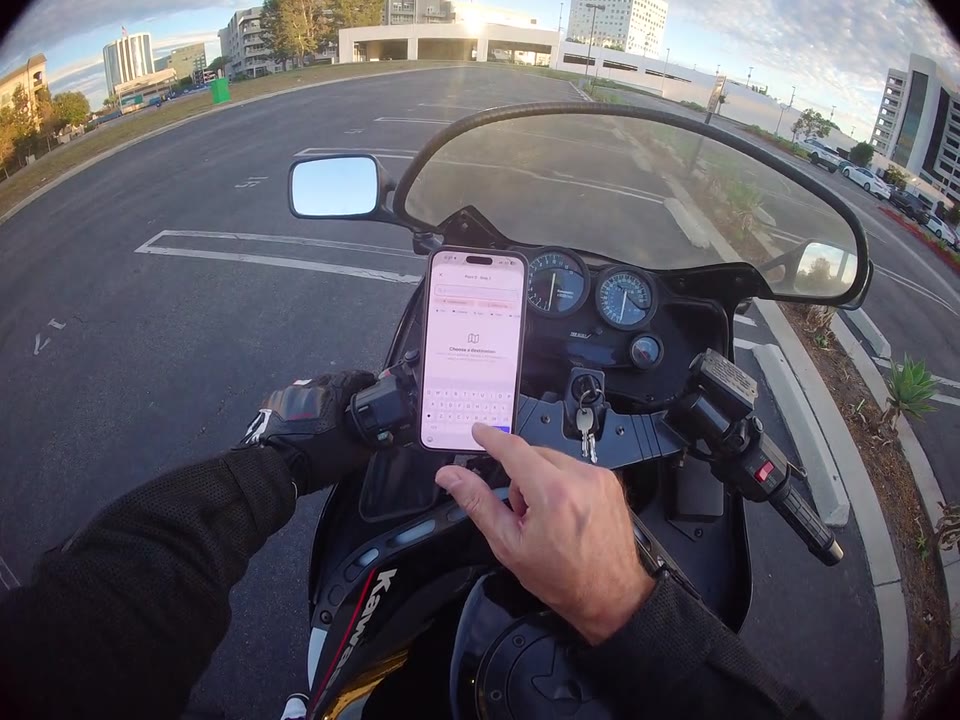
In RiderShield, use Start Ride and follow the phone-mounting and calibration prompts. Keep both devices nearby and stay safely stopped throughout setup.
Confirm Bluetooth pairing
When the phone displays a Bluetooth Pairing Request, check that it is for your camera and tap Pair. The recording shows this prompt over the active-ride map and a Connected status on the GoPro's Connect Device screen.
Try the recording controls
Use the camera controls at the top of the RiderShield ride screen to start or stop recording. Check the GoPro's preview and recording timer to confirm the change before you set off.
How do I connect my GoPro and control recording from RiderShield?
The demo starts with the GoPro on its Connect Device screen. Start a ride in RiderShield, complete calibration, and confirm the phone's Bluetooth Pairing Request for your camera. Then use the camera controls at the top of the ride screen and confirm recording on the GoPro. This clip does not establish compatibility with every GoPro model.