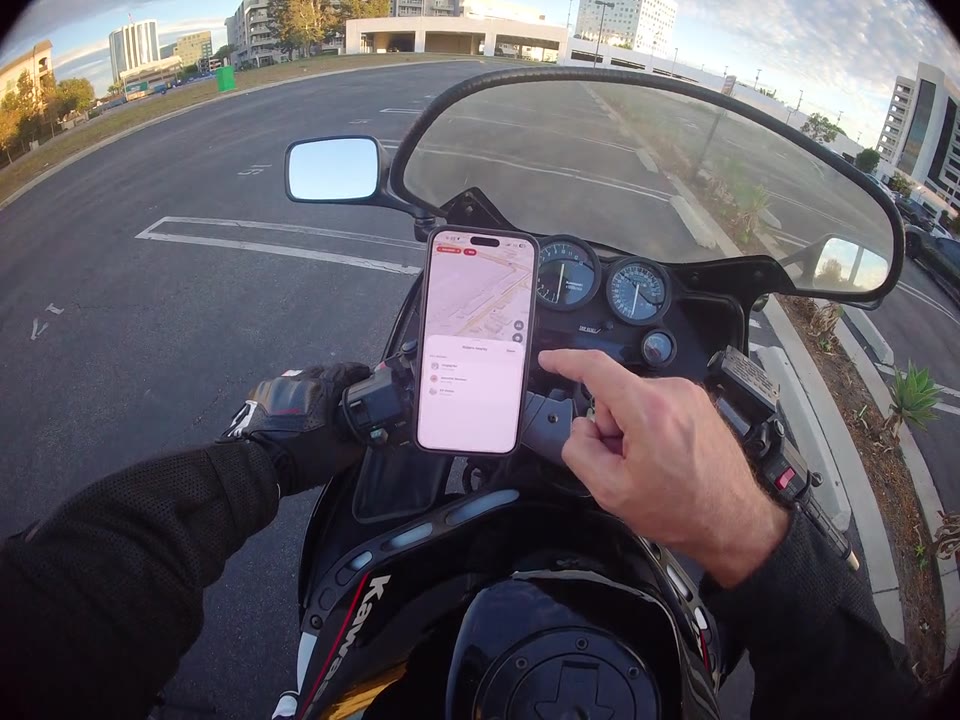
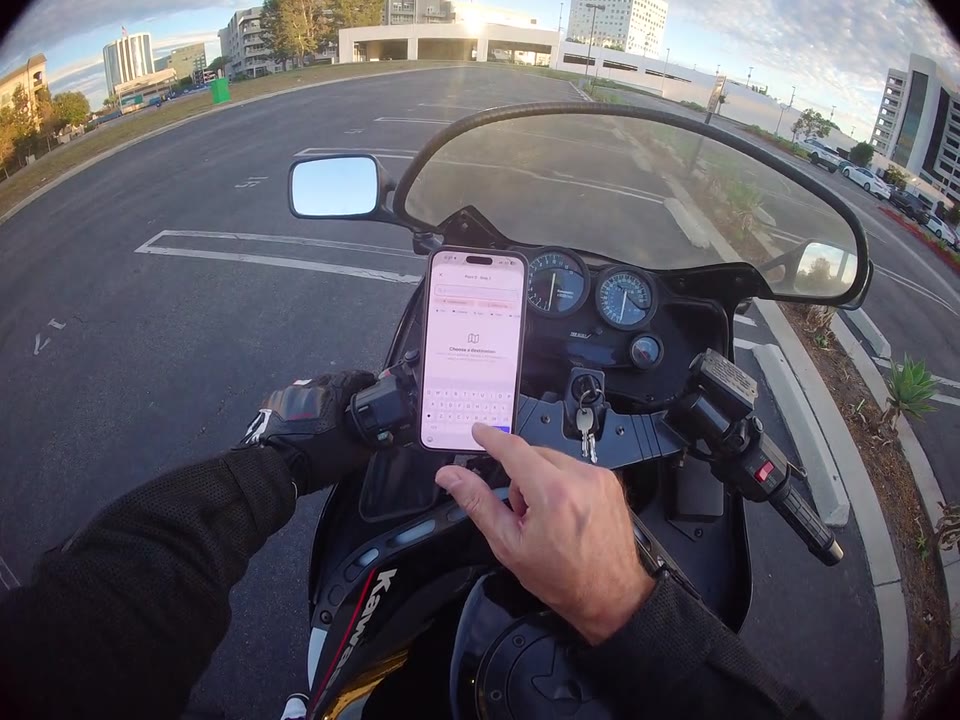
Navigation & maps
0:42 walkthrough
How to change map views in RiderShield
Explore the map controls and switch to a different view, including satellite imagery.
Follow along, step by step
Open the active-ride map
Begin from your active-ride screen. In this recording, the rider starts a Free Ride and completes calibration before exploring the map.
Use the map-view controls
Tap the map controls on the right side of the screen to open the available display choices.
Choose a different view
Select a map style and check the updated display. The demonstration includes switching to satellite imagery while the active-ride controls remain visible.
How do I change the map display during a ride?
Use the map-view controls along the right side of the active-ride map to choose a different display. The video includes satellite imagery. Stop safely before interacting with the map.